Live streaming inputs
Live streaming inputs generally come as either a push or a pull input.
Push: When data is being transmitted to somewhere (unasked), that is a push. In this case it would be MistServer receiving that data from somewhere else.
Pull: When data is being requested from somewhere (explicitly asked), that is a pull. In this case it would be MistServer requesting the data from somewhere else.
Push inputs
Push inputs are when others send streaming data towards your MistServer. In order to receive this stream data you must open a connection for others to reach out to you. That's where protocols come in. They determine what socket is open and what type of method should be used to send streaming data towards that socket.
Protocol / Connectors
Within the protocol panel there's several protocols you can set up. Within the configuration these are called connectors as they're methods for others to connect to MistServer. Any push input will require its own unique socket which should be used by anyone sending stream data to MistServer. Note that if a protocol has a default port they can often be left out of the address, 1935 for RTMP for example.
Generally we recommend going with the default configuration by enabling the default protocols, this will activate the following:
| Protocol | TCP/UDP | MistServer default | Protocol default |
|---|---|---|---|
| RTMP | TCP | 1935 | 1935 |
| SRT | UDP | 8889 | N/A |
| WebRTC | UDP | 18203 | N/A |
| RTSP | Both | 5554 | 554 |
| DTSC | TCP | 4200 | 4200 |
- WebRTC uses a single UDP port within MistServer, however to push WebRTC into MistServer you will need to connect to either the HTTP or HTTPS endpoint. However UDP port 18203 will still need to be available as well in order for the connection to work as the stream data goes through there after the HTTP or HTTPS connection makes contact.
The reason why we're not binding the default port for RTSP is because ports under 1000 require special root permissions and MistServer might not be running as root. You can change any of these ports, but but aware the method to reach MistServer changes with them.
Setting up a live push input
MistServer has a single syntax for stream source to handle all push inputs from (E-)RTMP, SRT, WebRTC and RTSP. This allows you to tell MistServer to expect a push on any of the listening sockets. There is no limit on the amount of ports/protocols you can dedicate.
In order to receive a push input you must create a stream, select an unique stream name and set the stream source to:
push://(host)(@password)
push://This is the required part to signify a push input should be expectedhostoptional, if set only accept pushes from this exact address for the matchingstream name. If not set any address is allowed to push stream data towards the matchingstream name.@passwordWhile this is available it is made obsolete bystream keys. If you wish to password protect your streams we recommend usingstream keysand not the optional password.
Once set up MistServer will report back the push urls to use to push into this stream for all ports/protocols set up. You can find this when editing/creating the stream, but also when trying to preview an offline push input stream.
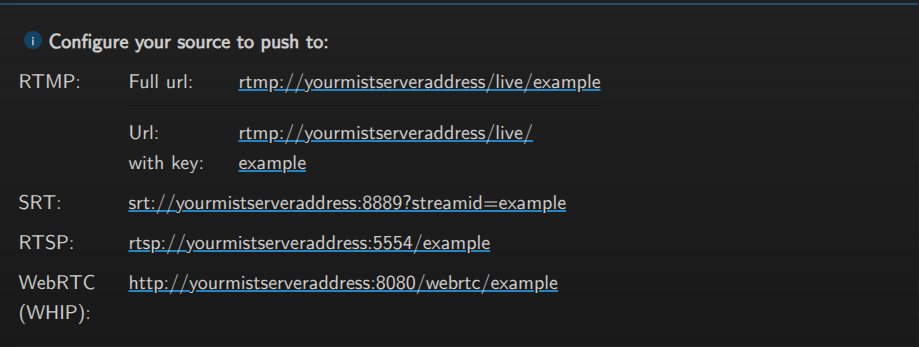
This information will need to be used by your application/device that can push a compatible stream.
Wildcard streaming
Wildcard streaming is a method to re-use the configuration of a live stream for live streams. This simplifies live streaming greatly and simplifies most live streaming set ups.
To use wildcard streaming all you need to do is push towards a stream name and add +wildcardname. This then uses the same configuration the stream name stream has and activates.
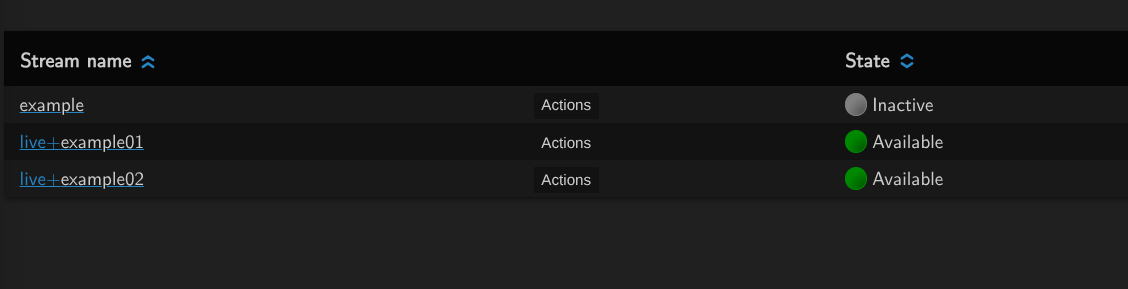
Specific port dedication for live stream protocols: SRT, Unicast, Multicast, RIST
Certain live streaming protocols also have the option to dedicate a specific port to the stream input. While the flexibility is less, you do gain a lot of clarity on what is dedicated to what and it can provide compatibility for devices that rely on an older standard of said protocol.
In this case instead of using a push:// notation you'll be using the protocol specific notation:
srt://(address):portfor SRTtsudp://(address):portfor uni/multicastrist://(@address):portfor RIST
In all of these cases the port and stream name is reserved to only work with this protocol.
Setting up password protected pushes: Streamkeys
Streamkeys are a method of setting up a password or alternative pushing url for your stream. This prevents anyone from pushing into the stream without having the password, while keeping playback streams easy to use.
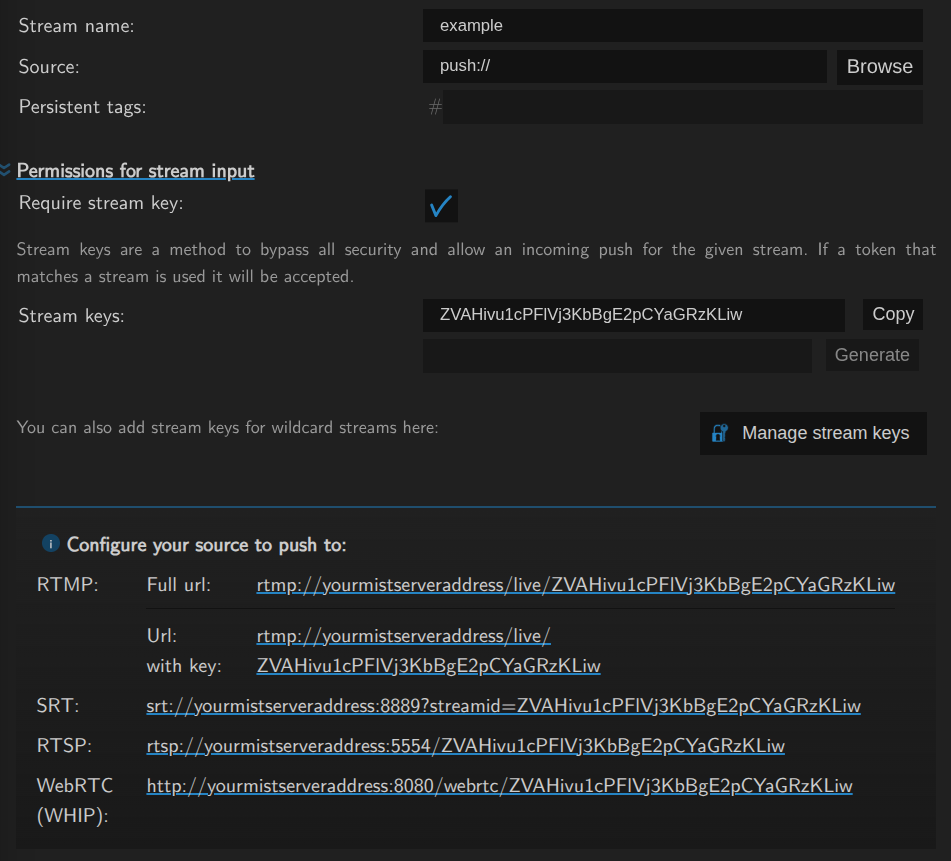
While in theory every character is usable we do not recommend using any special characters. The stream key needs to pass the protocol used and some characters will cause issues here.
You can also generate Stream Keys directly from the Streams panel.
Should a stream key be made for a non-configured stream within MistServer it will temporary create this stream while the push is ongoing much like a wildcard.
Pull inputs
Pull inputs are when MistServer is reaching another location to get stream data, receive it and then provide it as well. This will most likely be paired with protocols such as SRT, RTSP, HLS and MPEG-TS uni/multicast. Typically you should have been provided an url, address or port to connect to. Typically in order to pull in these inputs all you need to do is fill in this url as stream source.
The one exception to this rule is MPEG-TS multicast, as those urls typically are shared as udp://address:port. In this case you need to specify to MistServer that it should look for MPEG-TS data using an udp addres, this is done by: ts-udp://address:port
Executable live inputs
These do not purely belong to pull or push live inputs, but instead allow you to run a command as if filled into the command line interface. It is however closest comparable to a push input as MistServer would receive this as if it's a push. The output of the command is used by MistServer as streaming data. This can be used to input both MPEG-TS and Matroska media data.
mkv-exec:commandts-exec:command
Typically this is used with encoder applications such as FFmpeg or gstreamer.