MistProcAV, MistServers direct libAV integration
what is MistProcAV?
MistProcAV is the direct libAV integration for MistServer. This would be the fastest and most efficient way to encode video and audio within MistServer. The biggest advantage is that a lot of the piping and copying over data can be skipped using this method and it provides a much faster encode time of just a single frame.
Installing MistProcAV
In order to activate MistProcAV you will need to compile MistServer with libAV enabled. The easiest method to compile MistServer with MistProcAV would be to run the following script:
git clone https://github.com/DDVTECH/mistserver.git
cd mistserver
meson setup build -DDEBUG=3 -DWITH_AV=true
meson compile -C build
The only requirements for MistServer to build are meson, a compiler, libav
As a compiler we prefer ninja and to install libav the easiest method is usually to install ffmpeg on the system. Though sometimes you need specific development packages. As an example for Ubuntu24 we use:
apt-get -y update && apt-get -y install build-essential cmake python3-pip ffmpeg pkg-config libavformat-dev libavutil-dev libavcodec-dev m4 wget libgmp-dev libswscale-dev libavfilter-dev meson ninja-build git
Using MistProcAV
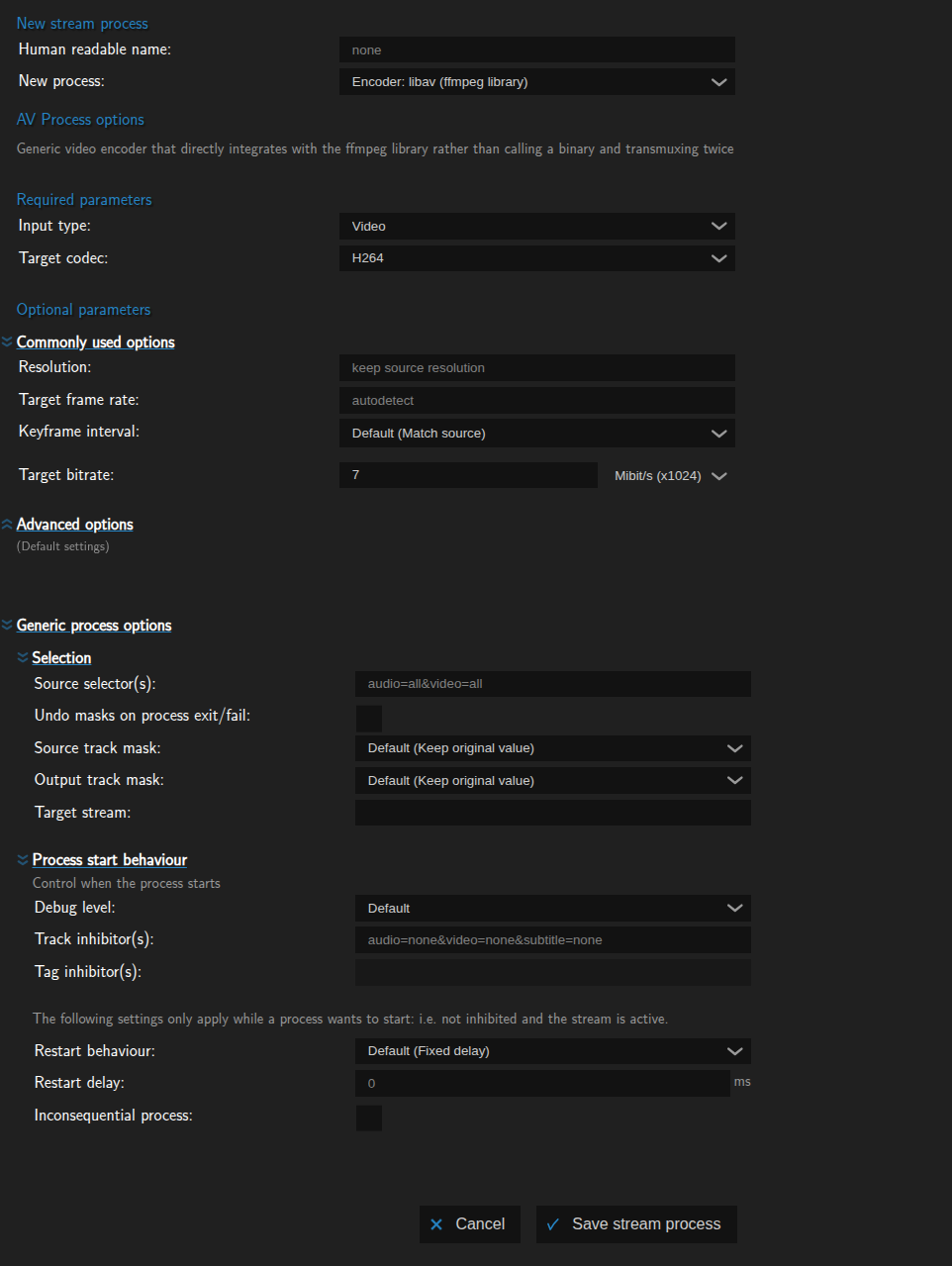
Once MistProcAV is added you will see an additional option at the stream processes. You should see the Encoder: libav (ffmpeg library), which will also be the default.
Video defaults
Audio defaults
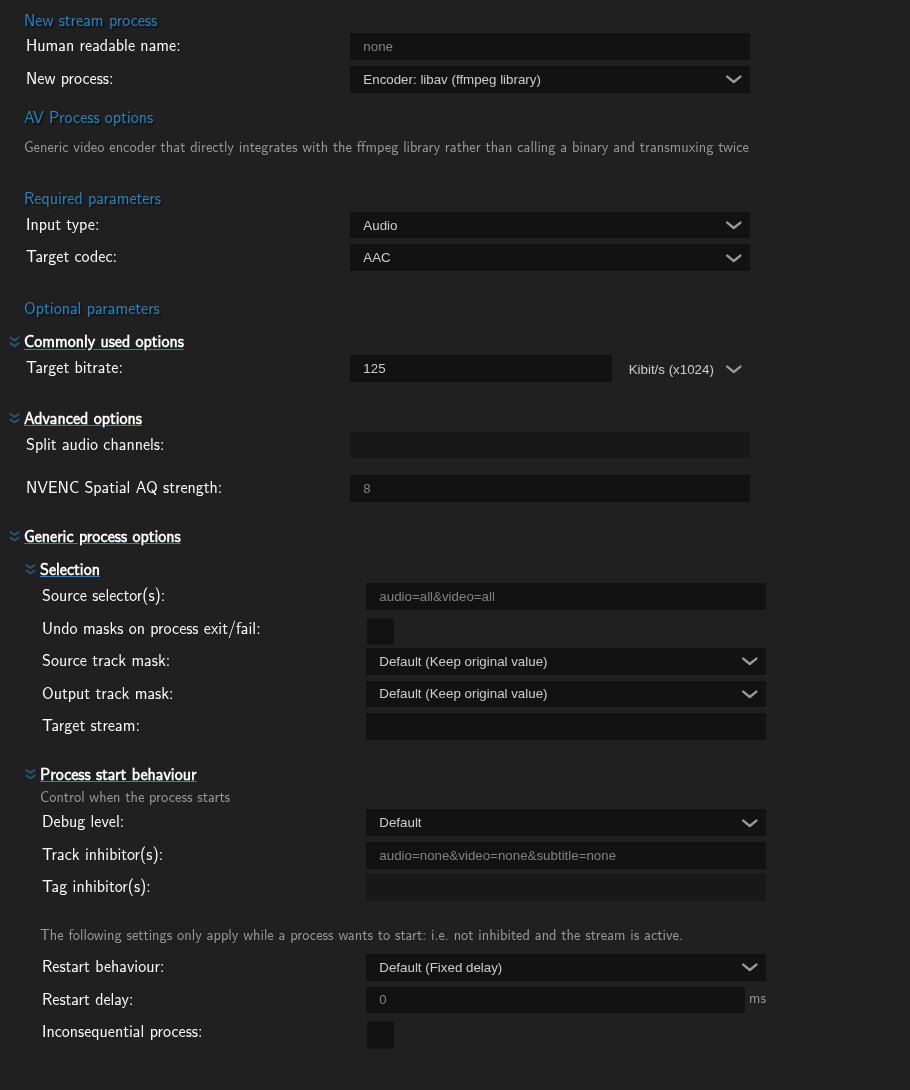
MistProcAV allows you to set up a video or audio encoding pipeline. Keep in mind that if you set up an audio or video encoder MistServer will delay the ready state for the stream when the processes activate, making it temporarily unavailable.This ensures that new viewers will be able to select the full audio/video tracks. Currently MistProcAV only allows for a single video or audio track to be created, if you want to create more you should add several processes. Since setting up an encoder can be quite a lot to keep in mind, the majority of the set up is in the encoding settings themself, however keeping an eye on the Input, Output and Masking doesn't hurt either.
1. Input
The input can be decided by selecting Audio or Video. This will then use MistServers default selection. The default selection would pick the highest quality video track for the resolutions available, and the last audio track available for audio. Should this not be accurate enough you can use the source selector to make a different track selection
2. Encoding settings
Most of the encoding settings should be pretty recognizable if you've done encoding before. If you're familiar with setting up an encoder you will most likely not read much new here as there's nothing unique to MistServer with this part. The following information is for those not familiar with encoders or those that want to brush up their knowledge just in case.
MistServer will have several encoding options under required parameters, optional parameters and advanced options.
Required parameters
The only true requirement (aside from selecting audio or video) would be the codec.
-Codec: The codec is the compression technique used to compress the audio or video data. There's various formats all with their own compatibility profiles for devices and delivery techniques.

All other parameters are optional or advanced as MistServer will assume you want to copy settings or use defaults instead, allowing for a fast codec change only.
Optional parameters
Should you want to do a bit more than just change the coded these options are most likely the ones you're looking for. They're the more commonly used parameters.
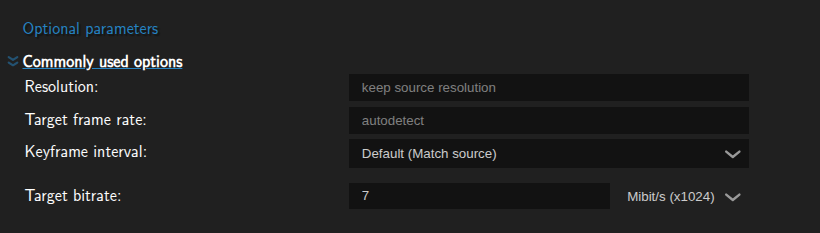
Resolution(Video): This is the size of the video, generally a bigger format allows for more quality, but doesn't necessarily mean more quality. Well known formats are 16:9 formats such as: 1920x1080 and 1280x720.Frame rate(Video): Frame rate is how often a picture can change and in turn determines quality and bandwidth quite a bit. Generally it's better for video with a lot of movement to have a high frame rate, while pictures that are mostly still don't require much for a good quality.Keyframe intervall(Video): Key frames are full pictures within a video stream. A player or decoder would need one of these full pictures to begin processing or showing the video.Bitrate(Audio and Video): This is the bandwidth the audio or video track will target per second. The more bandwidth the more quality can "fit" in the track, however high bandwidth streams are also harder to reliably send over the internet without a good connection. For audio this is often the only setting you will see.
Advanced parameters
These settings are more advanced in needing to have knowledge to set them up properly or are just very niche and won't come up every time you set up an encoder.
Video settings
Audio settings

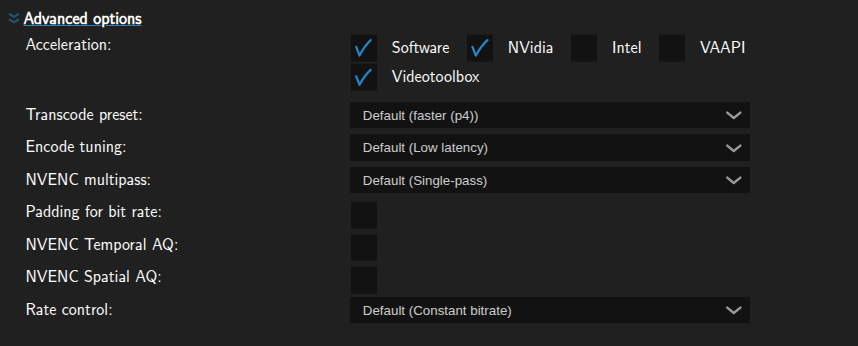
-Acceleration (Video): This is what type of encoder can be used, there's a choice between several hardware encoders that need specific hardware to work and Software that will always work. Generally Hardware encoders are faster and more suited for live encoding, software encoders always take up CPU usage and can be pretty taxing depending on the settings.
-Transcode preset (Video): This is a combined preset for both hardware and software in how many resources should be allocated. The faster the preset the less CPU intensive and the less "strict" the quality should be.
-Encode tuning (Video): Setting that sets the encoder into a different tuning/focus for the encode process.
Padding(Video): Enabling this will tell the encoder to add to the bit rate should it come up short for the target.Rate control(Video): The type of bit rate control to add.Constant bitrate: The bitrate should strictly stay the sameVariable bitrate: The bitrate is allowed to change between two targetsConstant quality: The bitrate can change however, but the quality should stay the same. -NVENC multipass(Video): NVidia hardware only setting. Adding a multipass can add to the quality of the stream at the cost of some latency.
Nvenc Temporal AQ(Video): Nvidia hardware only setting, this allocates more bitrate to highly detailed regions over time to make sure follow up frames lose less quality.Nvenc Spatial AQ(Video): Nvidia hardware only setting, this allocates more bitrate to flat regions that are visually more impacted by quality loss in an attempt to make them look better.Split audio channels(Audio): This allows you to split the current audio channels into multiple tracks of X audio channels. Usefull when going from codecs that allow more channels to codecs that only support less channels.
3. Starting rules, Output and Masking
The remaining generic process options determine when and how the process should start, what it can be used for and where it should be going. They are more advanced options within MistServer, but can be interesting for you depending what you need to set up.
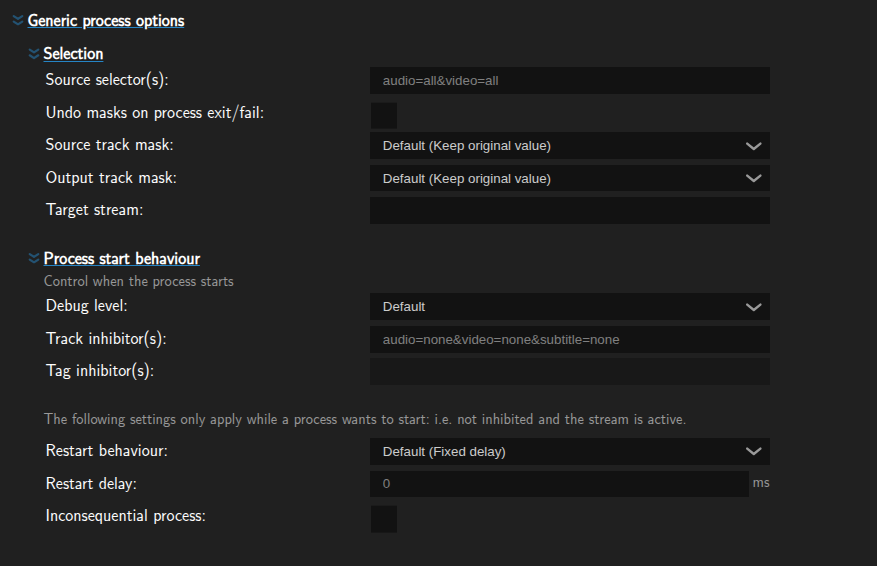
Selection
Here you can select what tracks should be selected for the input, what processes are able to use it and where it should go.
-Source selector: Here you can fill in the track selectors to make adjustments to MistServers automatic selection
-Undo Masks on process exit/fail: Should a process stop for any reason masking can be undone to allow viewers access original qualities should they have been hidden otherwise
Source track mask: Here you can select by what processes the original quality used to create the new track can be used.Output track mask: Here you can select by what processes the created track quality can be used.Target stream: Fill in the stream name that the created quality should go, defaults to the current stream.
Process start behaviour
These determine what conditions need to apply for the process to start and how it should restart.
Debug level: messaging level that MistServer provides.Track inhibitors: Here you can use track selectors to clarify under what conditions this process should not start. For example you can set up anHEVCvideo codec stream and tell it to not start if anHEVCvideo quality is already availableTag inhibitors: Here you can use tags to not start the stream process. Should the tag be present this process will not start.Restart behaviour: Here you can determine the rules on how the process should restart should something stop the process itself.Inconsequential process: Activating this setting means that MistServer will allow viewers to connect to the stream before the process is fully booted.
Examples
The following examples are copyable templates, if you add them to the clipboard and paste them while creating a template you can load in the settings. All of the following templates are stream process templates.
Adding a 1920x1080 H264 7mbps stream
This will add a 1920x1080 H264 stream with a 7mbps target. Encoderwise it will first attempt hardware and then fallback to software.
{"settings":{"bitrate":7000000,"codec":"H264","exit_unmask":false,"gopsize":120,"inconsequential":true,"process":"AV","tags_inhibit":["__ARRAYMODE__append__"],"tune":"zerolatency-lq","x-LSP-kind":"video","x-LSP-name":"1080p@7mbps","resolution":"1920x1080"},"x-LSP-template-kind":"process","name":"1080p@7mbps"}
Adding a 1280x720 H264 5mbps stream
This will add a 1280x720 H264 stream with a 5mbps target. Encoderwise it will first attempt hardware and then fallback to software.
{"settings":{"bitrate":5000000,"codec":"H264","exit_unmask":false,"gopsize":120,"inconsequential":true,"process":"AV","tags_inhibit":["__ARRAYMODE__append__"],"tune":"zerolatency-lq","x-LSP-kind":"video","x-LSP-name":"720p@5mbps","resolution":"1280x720"},"x-LSP-template-kind":"process","name":"720p@5mbps"}
Decode video to UYVY for composer/SDI
This will create a raw video track and hide said track from viewers. To avoid them being able to select an uncompressed video track. Processes such as encoders or the composer can still select it and so can recording/push processes.
{"settings":{"x-LSP-name":"Decode Video","process":"AV","x-LSP-kind":"video","codec":"UYVY","target_mask": "1","inconsequential":true},"x-LSP-template-kind":"process","name":"Decode Video"}
Decode audio to PCM for composer/SDI
This will create a raw audio track and hide said track from viewers. To avoid them being able to select an uncompressed audio track. Processes such as encoders or the composer can still select it and so can recording/push processes. Keep in mind that PCM can travel over RTMP and SRT, so you might want to change any push process to select a specific audio codec or hide this track from Pushes as well ("target_mask":"3" instead).
{"settings":{"process":"AV","x-LSP-kind":"audio","sample_rate":48000,"target_mask": "1","inconsequential":true},"x-LSP-template-kind":"process","name":"Decode Audio"}
Creating AV1 video track
This will generate a comparable AV1 track of the highest resolution track and attempt to create a 8mbps stream and only use hardware acceleration. Now 8mbps is most likely far too high bitrate for AV1, however this loosely translates to set the quality as high as possible for the given resolution. A realistic target would be that a 10mbps H264 stream ends up around 5-6mbps for AV1 as it should do compression 40-50% better.
{"settings":{"x-LSP-name":"AV1","process":"AV","x-LSP-kind":"video","codec":"AV1","accel":"hw","bitrate":8000000,"gopsize":120,"track_select":"video=maxres","inconsequential":true},"x-LSP-template-kind":"process","name":"AV1"}