Templates
MistServer Templates
MistServer templates are introduced in version 3.12. Templates allow you to save configured Streams (including processes and the composer designer), Processes, Pushes and Triggers. This allows you to reselect these configurations in the future to quickly apply settings. You can even import/export from clipboard allowing you to share templates between MistServers.
There are separate templates for:
- Stream configuration (including Stream processes!)
- Stream processes
- Triggers/Webhooks
- Pushes/Recordings
- Composer
Using Templates
Templates exist fully within the interface, there is no API call to set up a template. Internally what a template does is nothing more than auto-applying settings before you send in an update to the relevant setting.
You know your MistServer can handle templates if you see the template menu at a setting:
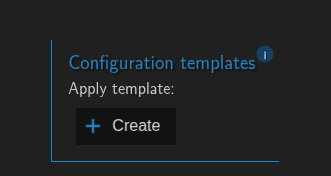
The above would be the template without any templates set up. If you do have templates set up you can select them from the same menu:
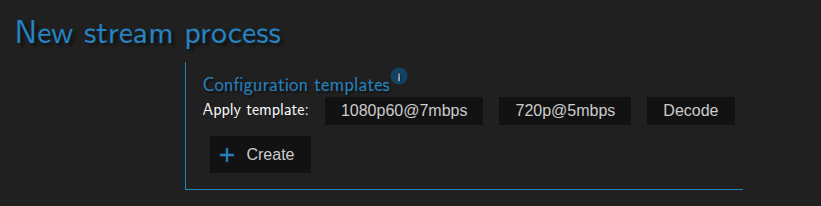
Clicking the template will apply it, while hitting undo will undo it. Templates can be set up to be in Overwrite (Default) or Additive mode.
- Overwrite mode: In this mode templates will apply ALL settings even if not set up, this does mean that any current configuration will be lost.
- Additive mode: In this mode templates will apply the settings that are set up and not touch any other settings, not changing those settings at all.
Creating a Template.
While creating a template there are two main methods and two main modes to keep in mind. Methods:
- Copying over the settings from the current configuration form
- Copying over settings from a valid JSON clipboard
Modes:
- Overwrite all settings of the current configuration using the template (Overwrite, Default)
- Add the settings of the template to a current configuration (Additive)
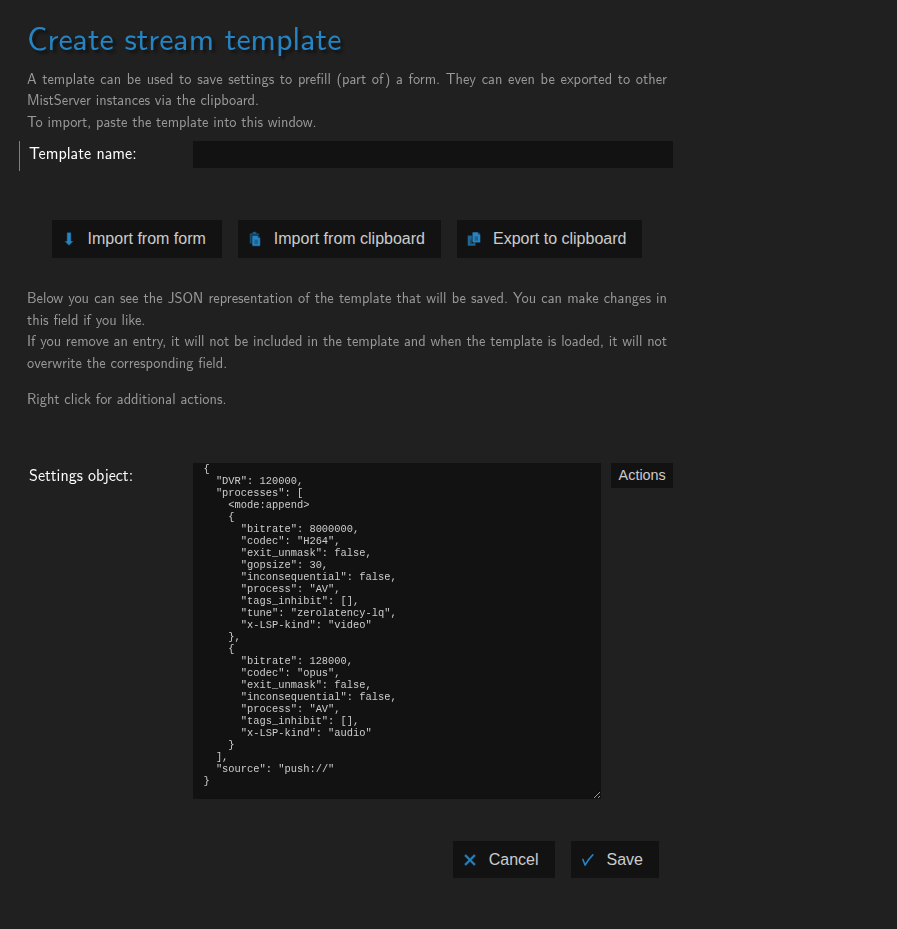
When you create a template you will always encounter a fully empty Template field:
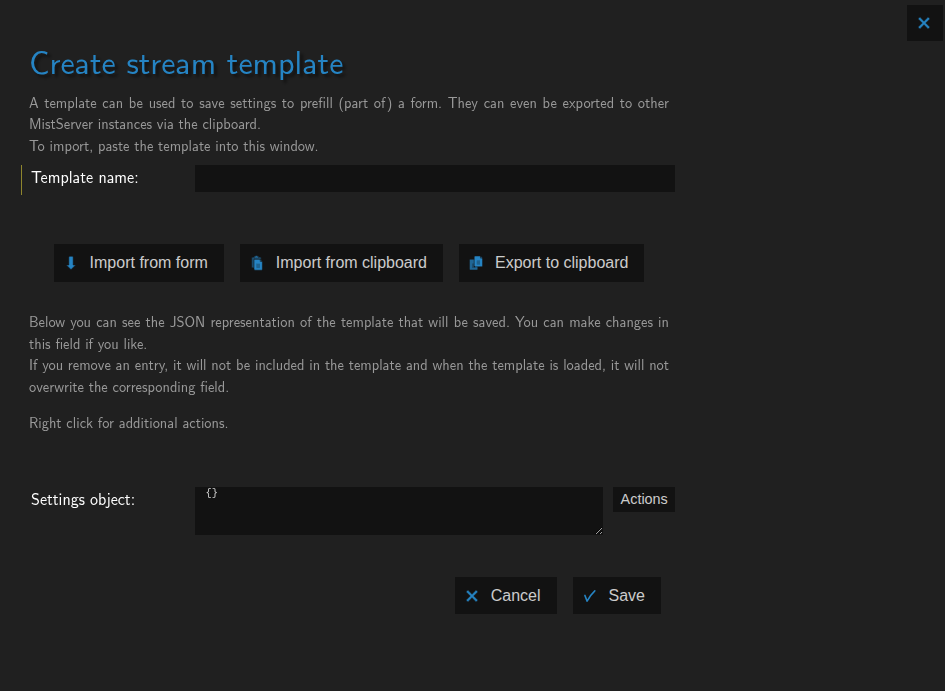
This is done on purpose so you have the option to import from the clipboard or import from the current set up configuration. Or when editing an existing template you can select the export to clipboard here as well.
Once you've chosen how to import the template you can switch the modes by pressing the Action button.
The easiest way to notice the difference is that in Overwrite mode you will see settings applied with null values, which will make sure any settings are reset to their defaults when the template is applied.
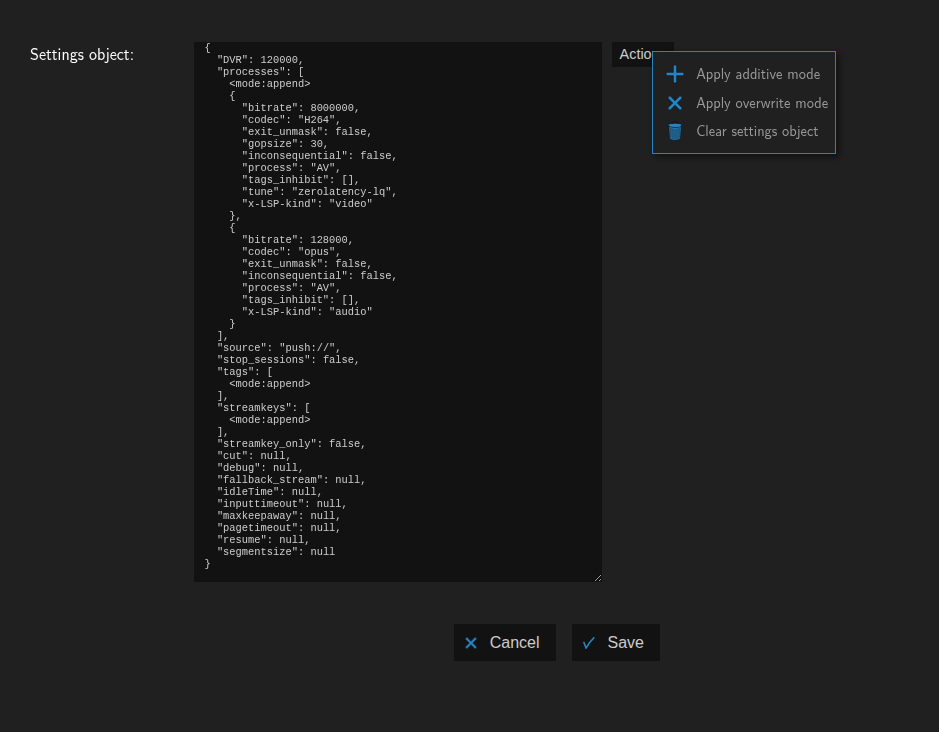
If you select Additive mode you will see a shorter configuration, with only the settings that are changed from defaults applied:
Updating Templates
When you update a template, it does not automatically apply the updates everywhere the template is active. In order to apply the latest template you will have to reapply said template to the locations you're using it. This is mostly by design to not accidentally change settings everywhere at the same time. Another planned feature where we'll separate stream processes from stream names will be able to do this however.