The MistServer Interface
The Mistserver interface is available by visiting the API port using any browser capable device. The interface is currently only available as HTTP and does not support HTTPS unless using a reverse proxy. By default the interface should be accessible by using a browser and visiting:
http://address:4242
After the initial account creation you will be able to skip authentication on localhost addresses.
Account creation
The very first time you log in you will be prompted for login information, this applies even when connecting over a local address.
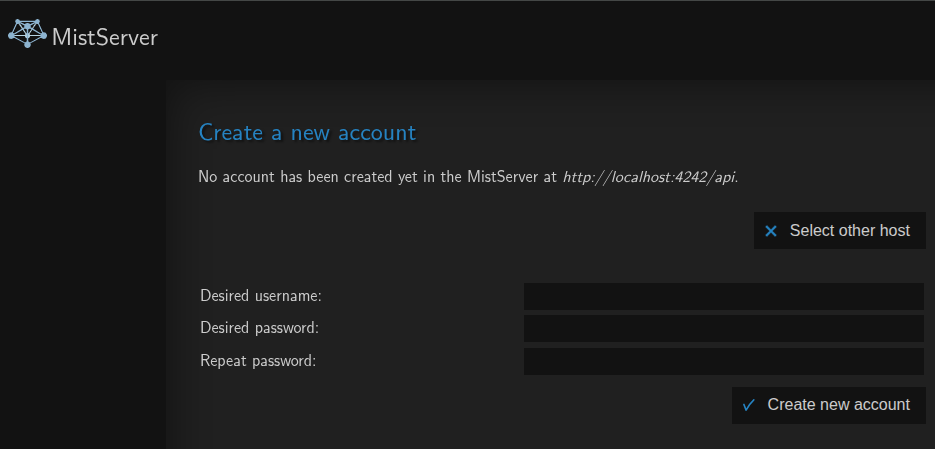
This step can be skipped if an account has been made through the command line interface or through an existing configuration.
Overview
The overview panel is the first panel you will see when logging into MistServer.
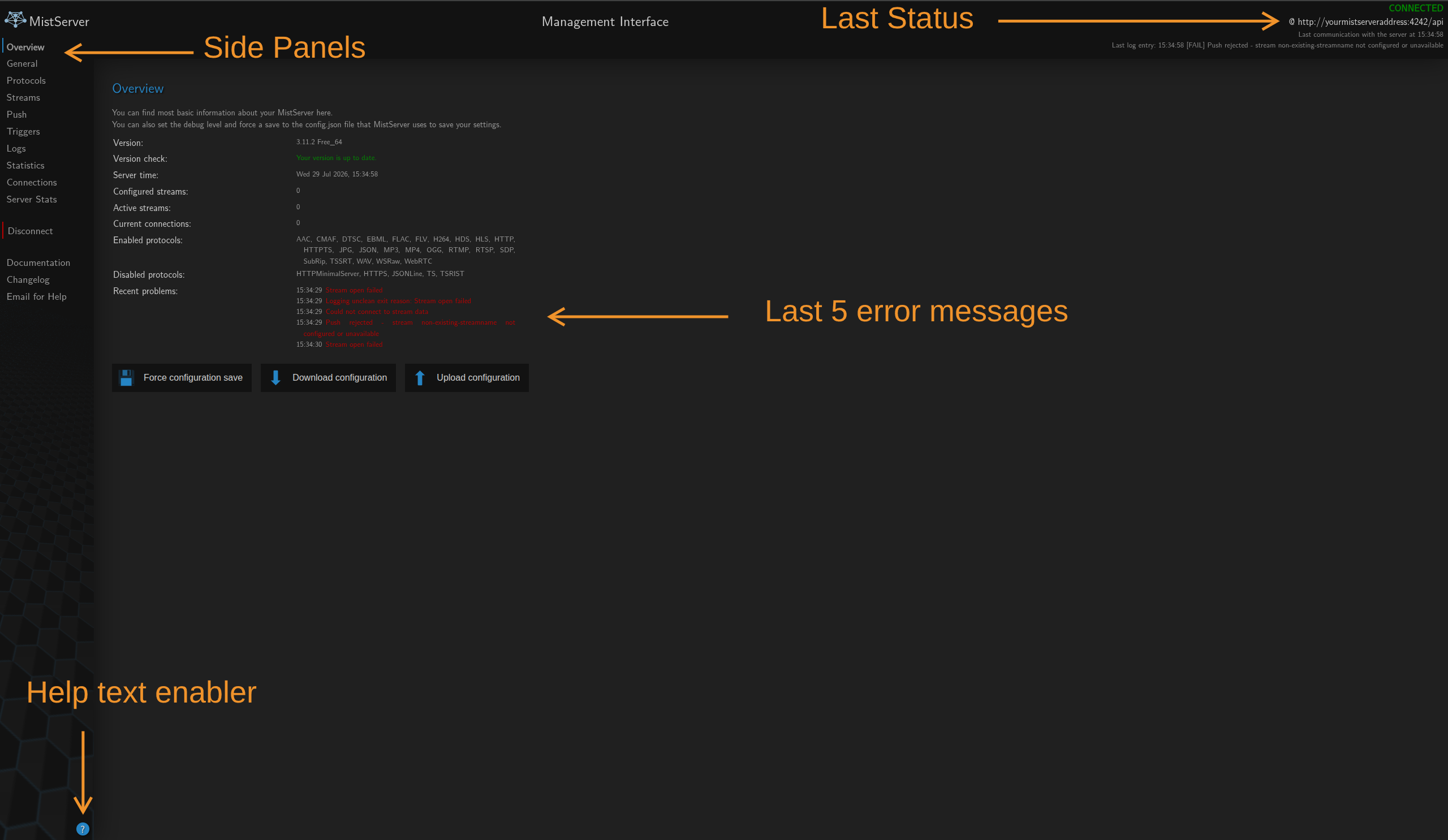
In this overview you will see the last 5 error messages within the log, depending on the amount of messages that your server sees these might stick around for quite some time. Other than that you'll see the side panel which can be used as navigation between the several panels available within MistServer.
General settings
-
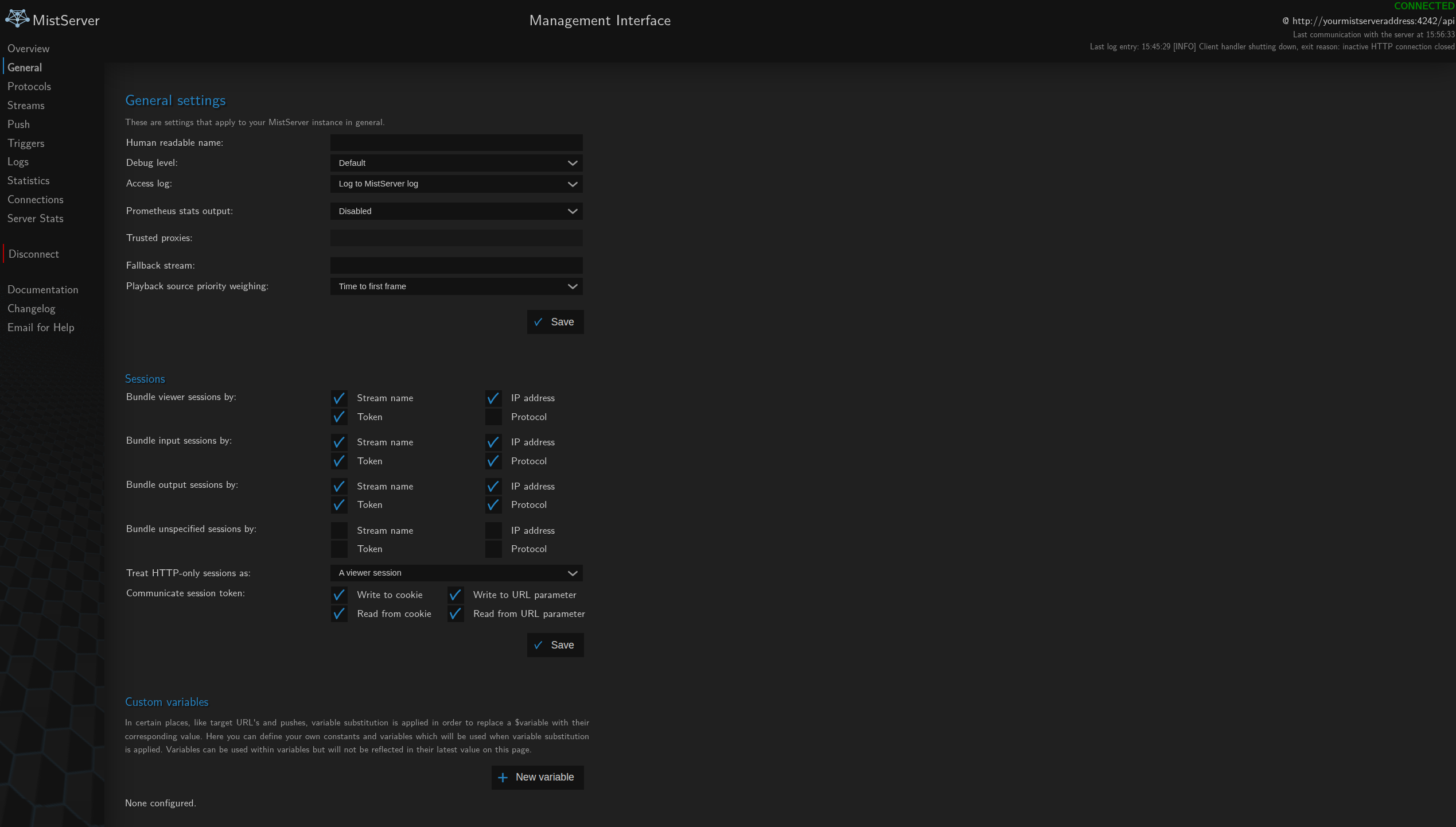
General settings This panel fits most settings that didn't fit anywhere else. Most of these settings we plan to build a specific or more advanced panel for at some point, but didn't quite to it.
-
General settings These are general settings within MistServer that didn't quite fit anywhere else. While generally helpful they're also not strictly necessary for MistServer to work.
-
Sessions Sessions are either completely irrelevant or very important depending on your usage. Simply put the session system is the settings that determine "what" makes an input, viewer or output "unique" and when it should be treated/measured as an unique connection.
-
Custom variables Here you can set the custom static or dynamic variables within MistServer.
-
Load balancer Here's the settings that will automatically be communicated to a MistServer loadbalancer.
-
Custom Writer Here you can attach your own custom outputs to MistServer.
-
Json Web keys Here is where you can set up the JWT/JWK integration.
Protocols
Here you set up all the sockets/end points users can connect towards. This means both viewer protocols and endpoints as well as contributors sending in a stream towards your platform. This does not affect MistServers ability to pull in streams or read files.
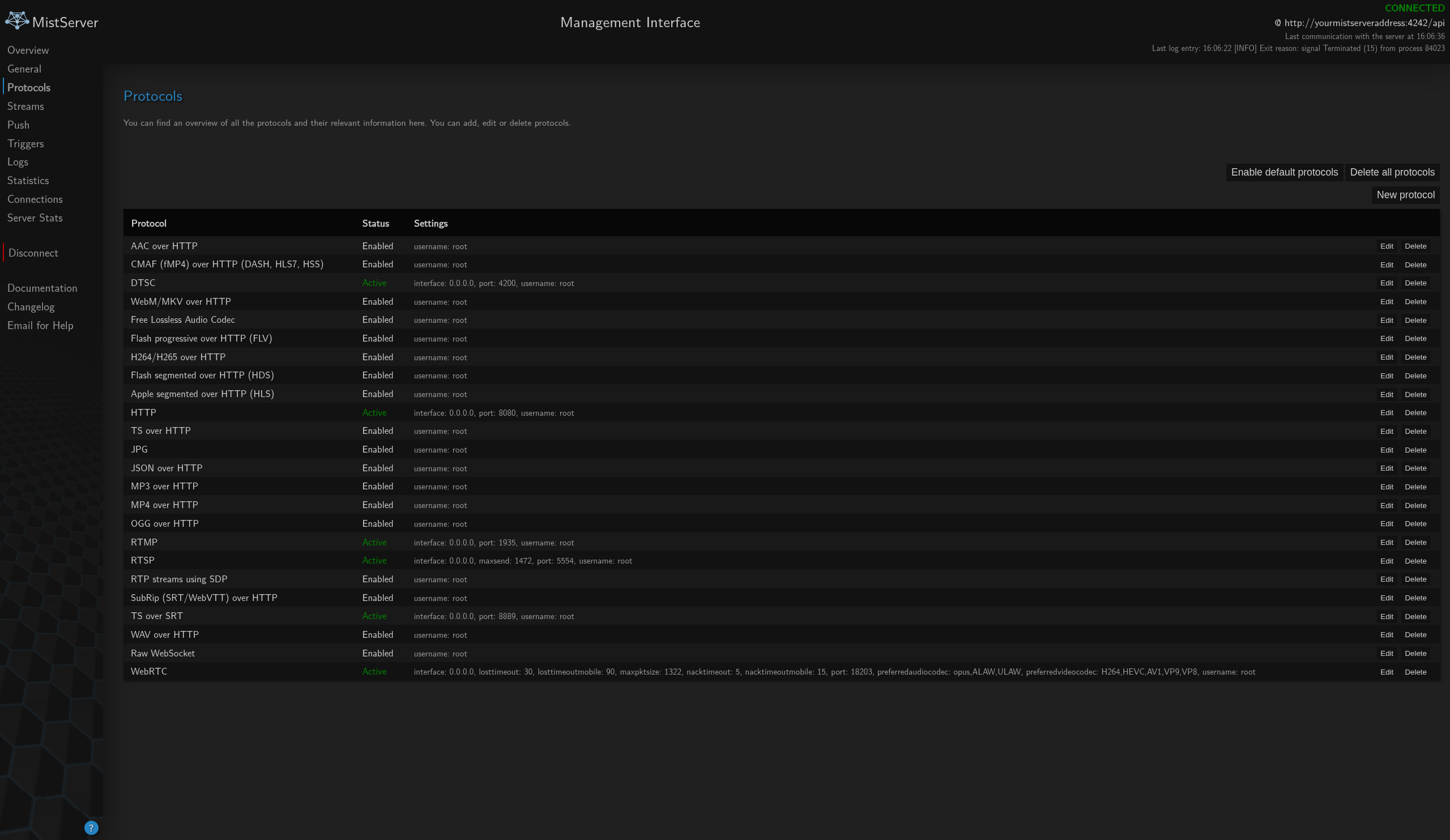
Generally any protocol that is dependant on another will have this listed in the name itself. Hence "MP4 over HTTP" as MP4 needs HTTP or HTTPS in order to be transferred to the other side. There is no limit in how many protocols can be set up, but when order of priority is concerned MistServer will use the highest listed first. As an example, if you were to set up 2 "MP4 over HTTP" protocols and the lower one has a debug level of 6, you will not see this get used as the first to be listed would not have this.
The default for MistServer will be to activate as many protocols as possible with sensible defaults. In most cases this would be the port for the protocol however there's 2 exceptions: HTTP and RTSP. Both of these protocols default to a port under 1000 and will require root access, since this is not always available either due to permissions or because of other applications using the port they will attempt other ports by default (8080 instead of 80 for HTTP, 5554 instead of 554 for RTSP). HTTPS sadly cannot be automated as it requires a certificate and a key, which always require manual input to generate.
Streams
Here you can set up any stream available within MistServer. Configured streams will always show up as white, while unconfigured streams or wildcard streams will show up with blue in their name. This means that they're temporary events and will dissapear once their source stops.
Since streams can be quite complex we recommend reading up on Live and VoD inputs
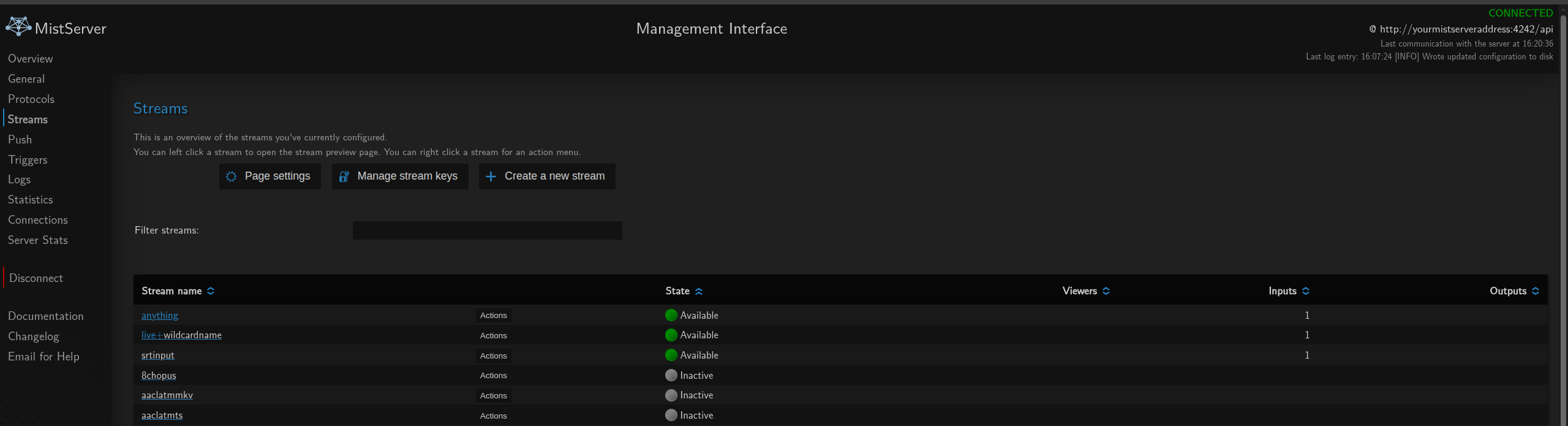
- You can right click on a row containing a stream for actions
- The default for left click can be changed at "Page settings"
- Any stream showing up as fully blue is not configured and only available while active
- Any stream in combined colours is a wildcard stream of a configured stream.
Any stream has a few configured sub-panels:
- Status: Here you can view the stream information, stop/restart the stream and add processes or pushes
- Preview: here you can view the stream in the development meta-player skin
- Embed: Here you can view all the usable stream urls and generate a code to add the player+stream on your website
- If your live stream is offline, the preview and settings page will show the urls you can use to start the stream
- The interface determines the urls from your connection. Keep in mind that
localhostwill fail for remote connections - You can change this url by setting a public address within the HTTP (or HTTPS) protocol
Push
Here you can set up any one-time or automatic pushes as well as set up the automatic push behaviour. Automatic pushes can be set to active or inactive as well. A list of currently active pushes (both automatic and one-time event) will be listed at the bottom and can be stopped.
The automatic push settings have 2 options:
- Delay before retry: the time in seconds before a repush is attempted, 0 means only attempt once.
- Maximum retries: The amount of (failed) retries in a row before push attempts are stopped, 0 is always retry
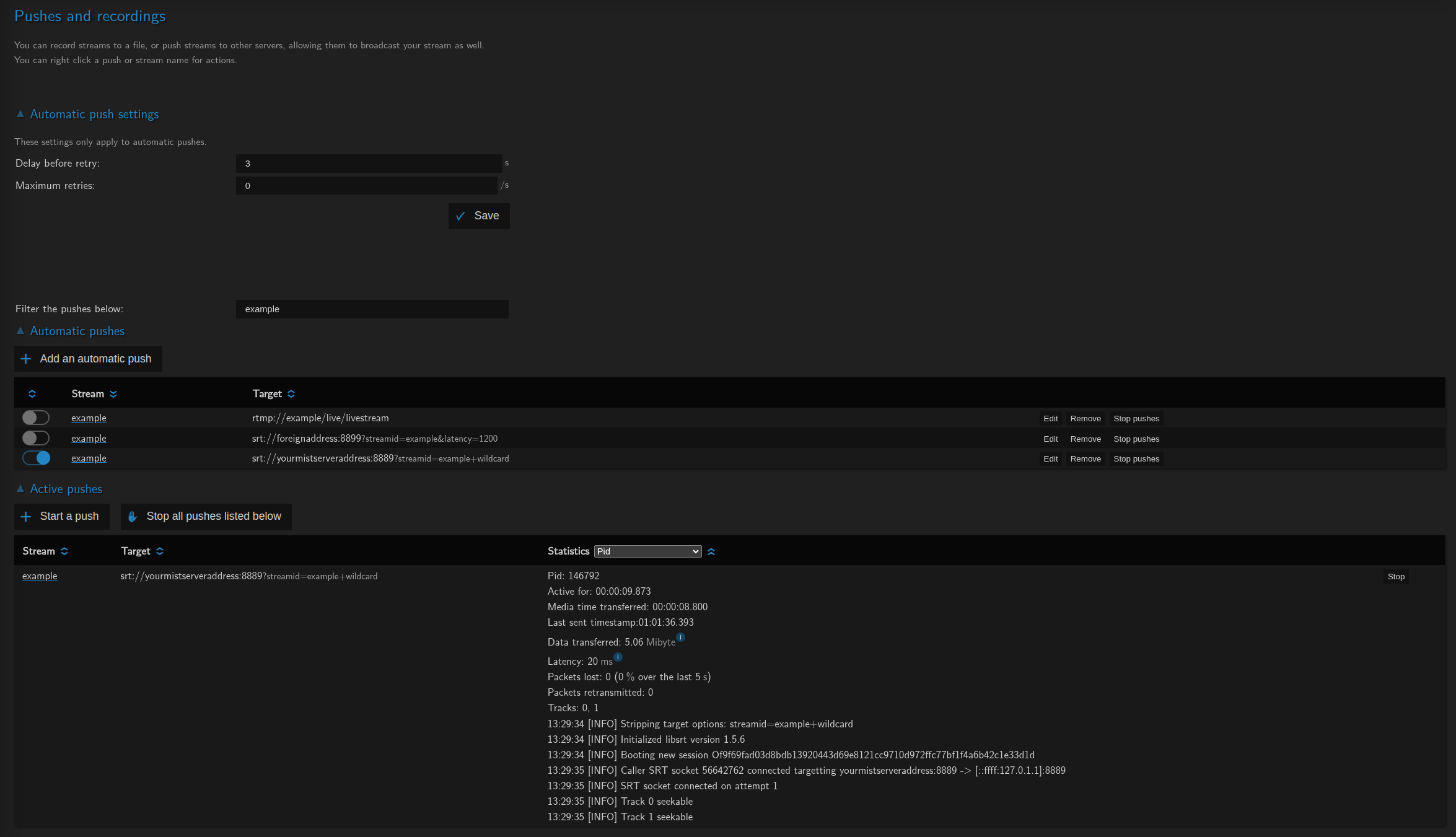
- Stopping a push started by an automatic push will re-activate if the push rules still apply
- If the filter is used, the stop all pushes listed below does indeed use the filter
- An automatic push will remove itself if it can never activate again, for example setting a date/time as end of recording/push time.
Triggers/Webhooks
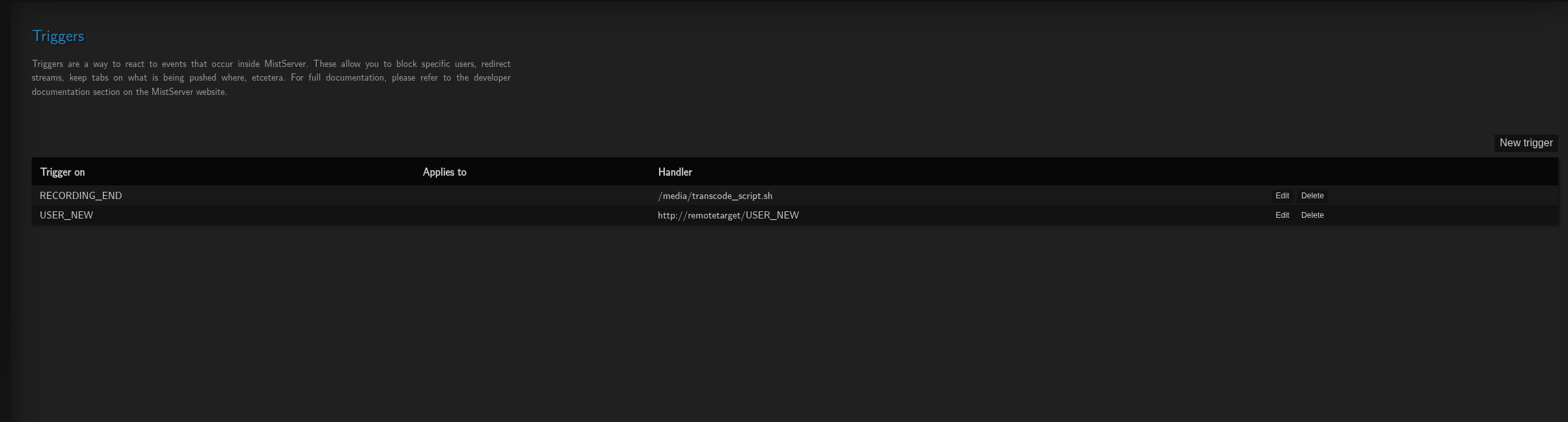
Here you can change the server flow and do custom integrations with MistServer. A Trigger/Webhook can be local code to run or a remote address to call out to. Since this is quite a complicated topic we recommend reading up on triggers/webhooks as well.
Logs
Here you can view the last 100 logs available within MistServer. These logs will keep updating and depending on the amount of logs your browser might not like it. We recommend opening the raw logs to read the current 100 as that does not update and is easier to copy from.
Statistics
Here you can make some basic statistic panels to view the statistics that MistServer holds for about 10 minutes of history. If you want to have full fledged analytics we actually recommend using the [Prometheus compatible output][prometheus].
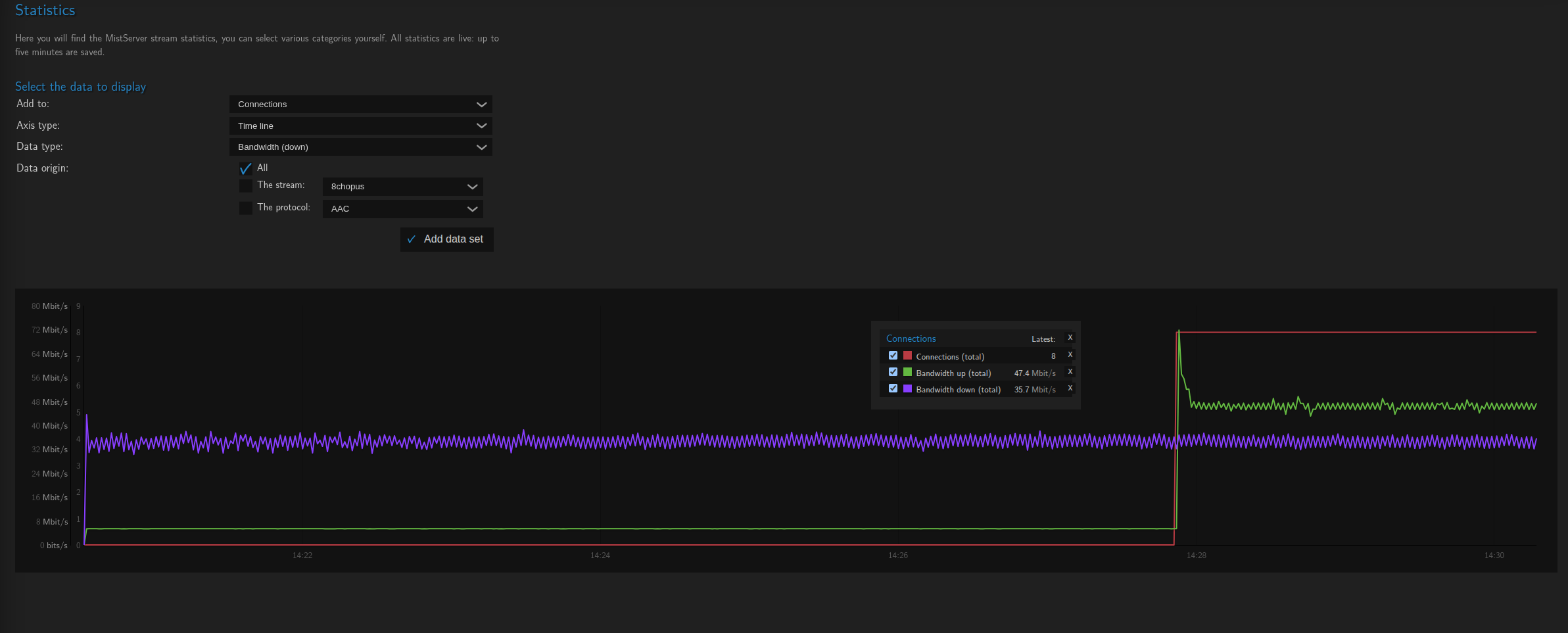
- Most stream specific statistics will be available from 10 minutes in the past.
- Server specific statistics such as CPU/RAM will be measured from the moment you set them up and are statistics as a while, not what MistServer is using.
Connections
Here you can see all the ingoing and outgoing connections, whether it are pulls, pushes or viewers. When you right click on a row you can copy certain fields, tag a connection for use or even stop or force it to rerun through the USER_NEW trigger again. Any relevant connection information is added to the table.
You can of course filter the connection table to make finding a specific connection easier.
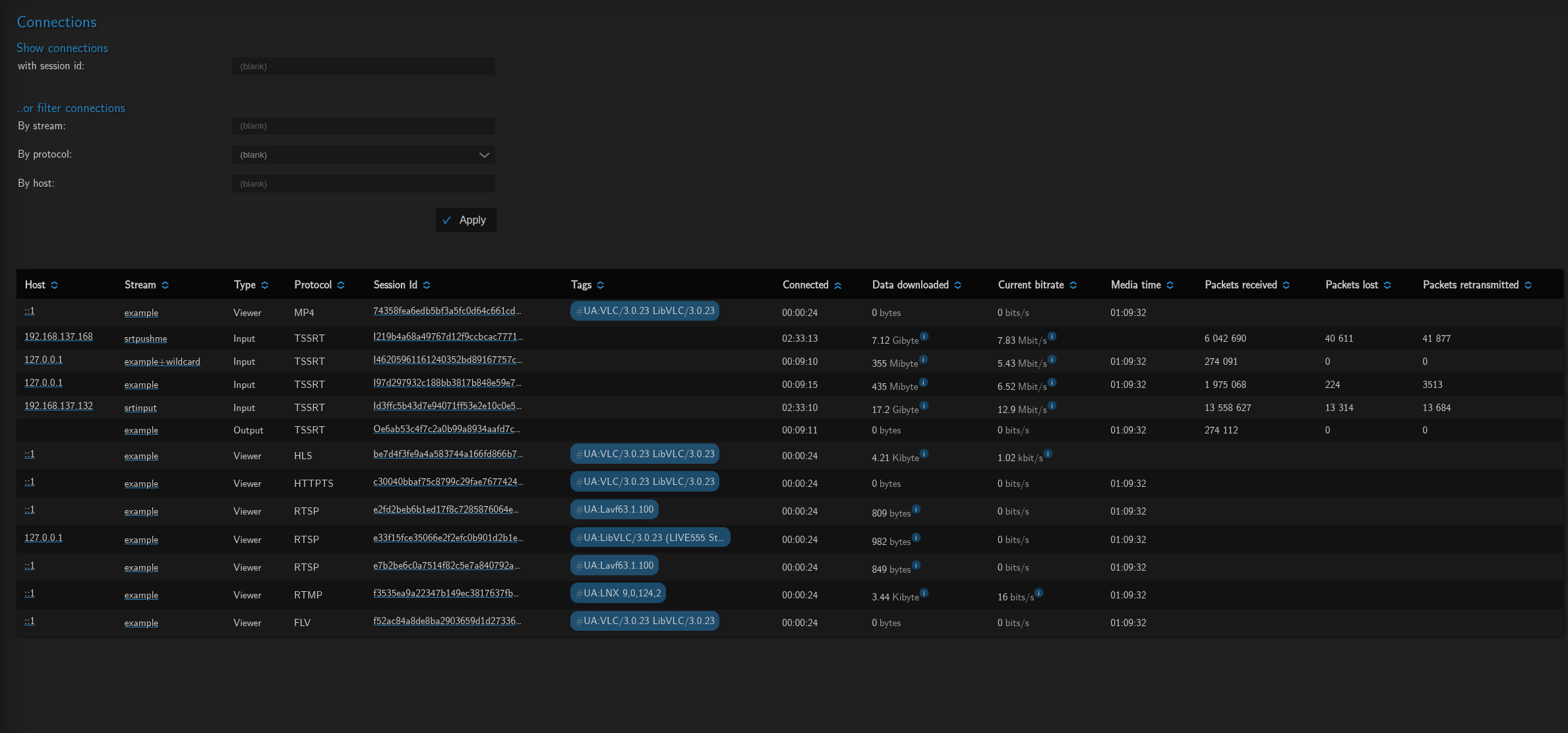
- Right clicking allows for easy host name or session ID copying for usage
- Invalidating a session makes it run through the USER_NEW trigger
- Stopping a session will kill the connection, but does not block a new one from being (re)made
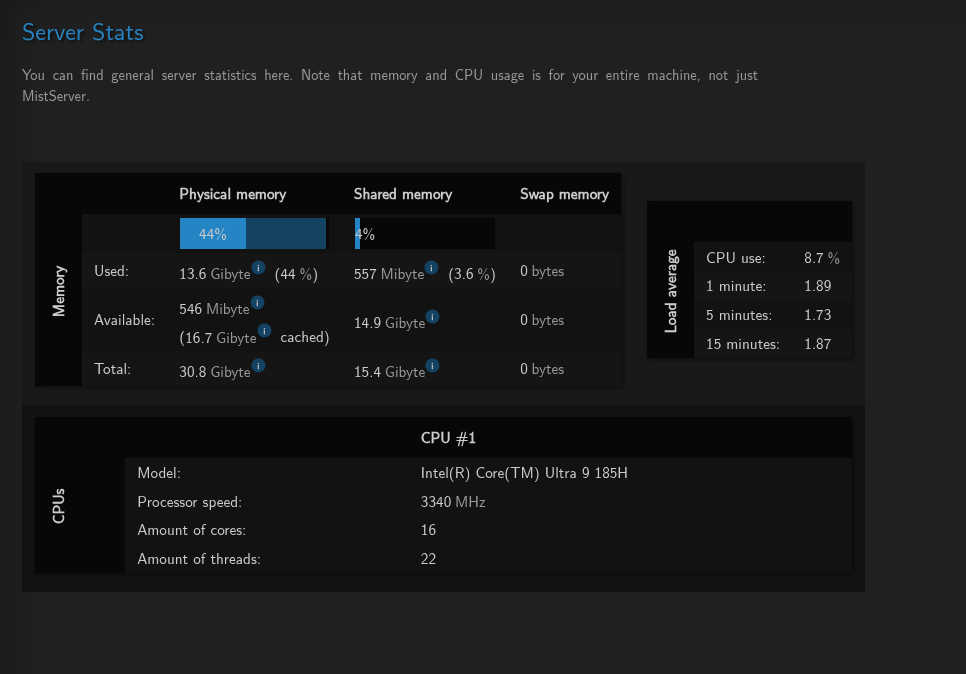
Serverstats
These are the server specific statistics that MistServer can read from the server as a whole. These are not specific to MistServer and should be equivalent to any statistics shown by processes such as top, task manager or similar programs that can show the current CPU and RAM usage.